Guides to Scanned PDFs
Seven short, practical guides on giving digital files a scanned look, turning phone photos into clean scans, and handling the paperwork around them. Each one uses the real controls in ScanKit, and each is honest about what the tool cannot do.
New here? Start with how to make a PDF look scanned if you have a digital file, or turn a photo of a document into a scan if you have paper.
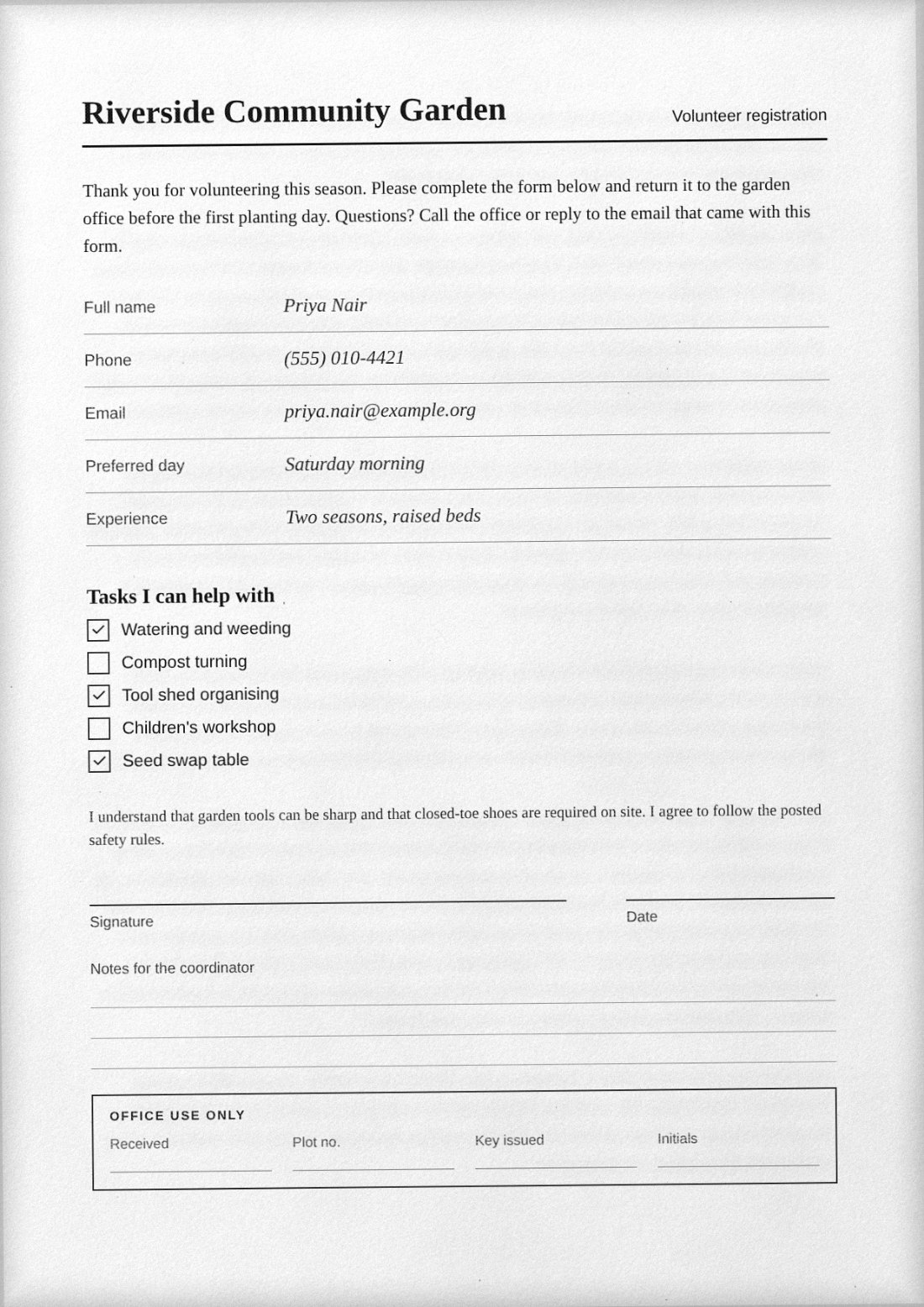 How to make a PDF look scannedAdd paper grain, toner, tilt and uneven lighting to a clean PDF, layer by layer.
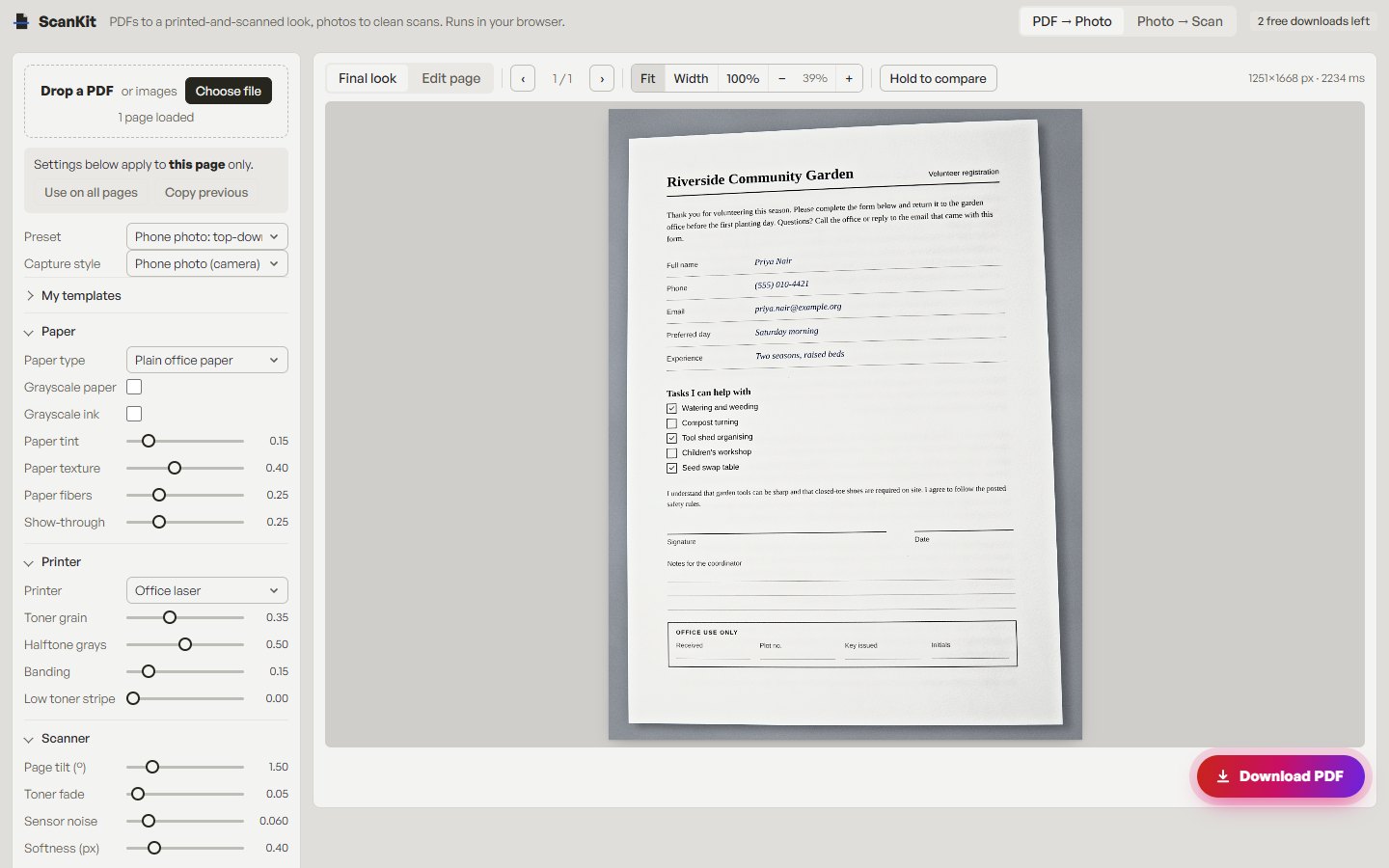 PDF to scanned PDF onlineThe quick route from a digital file to a scan-style PDF, compared with print-and-scan.
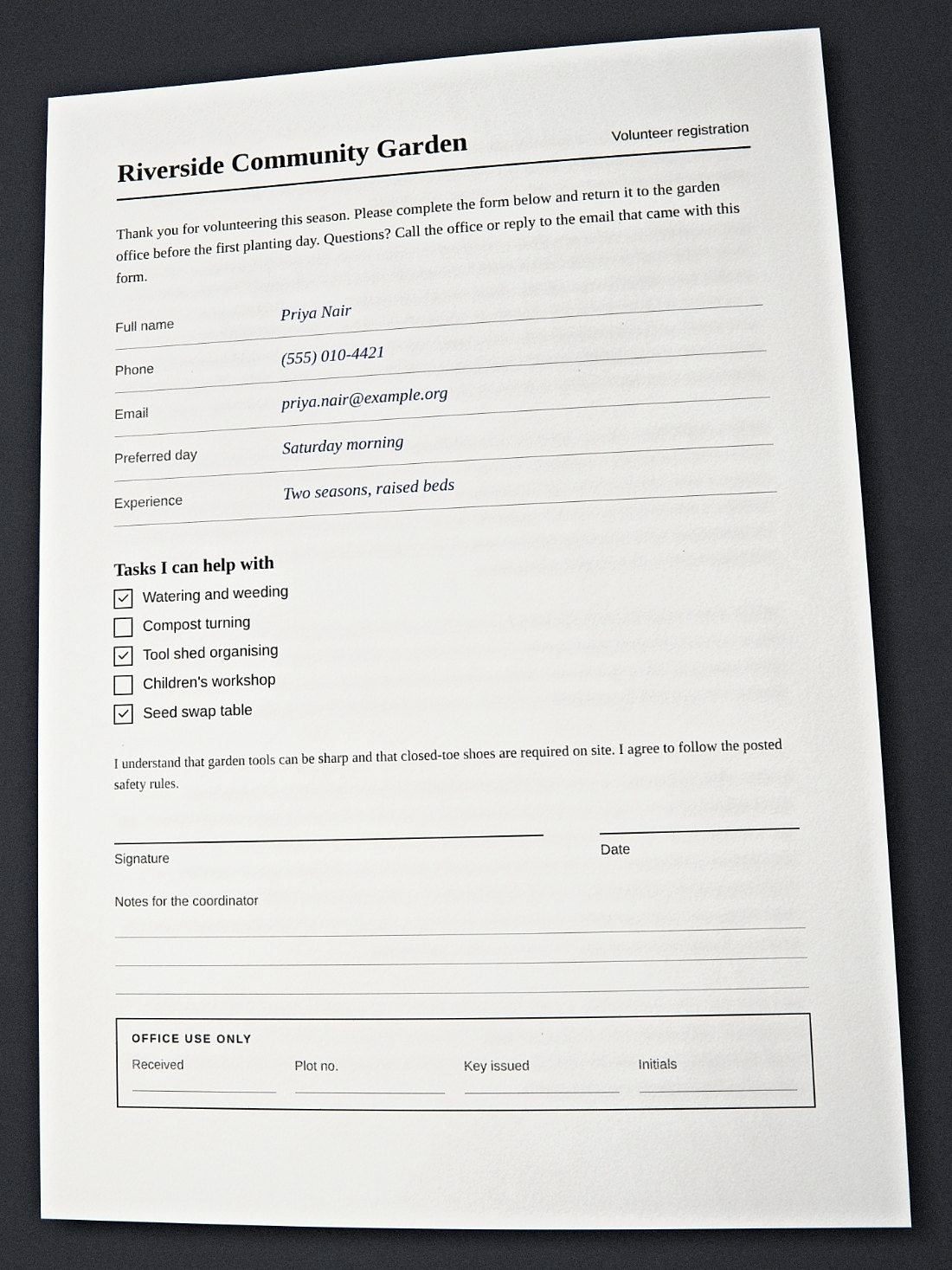 Turn a photo of a document into a scanCrop, straighten and clean up a phone photo so it becomes a flat PDF page.
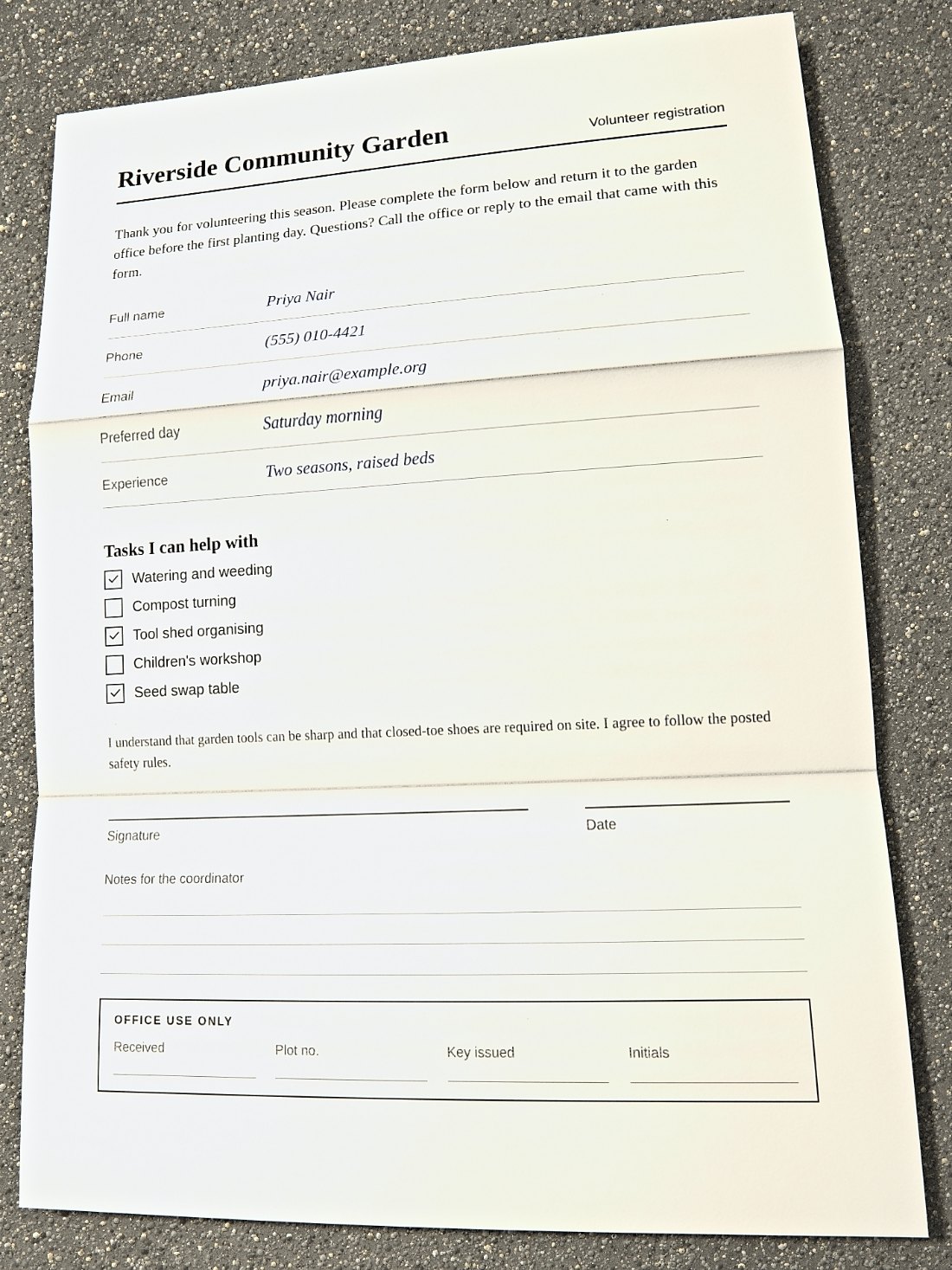 Print, sign, scan: a faster alternativeSkip the printer when a form only asks for a scanned, signed copy.
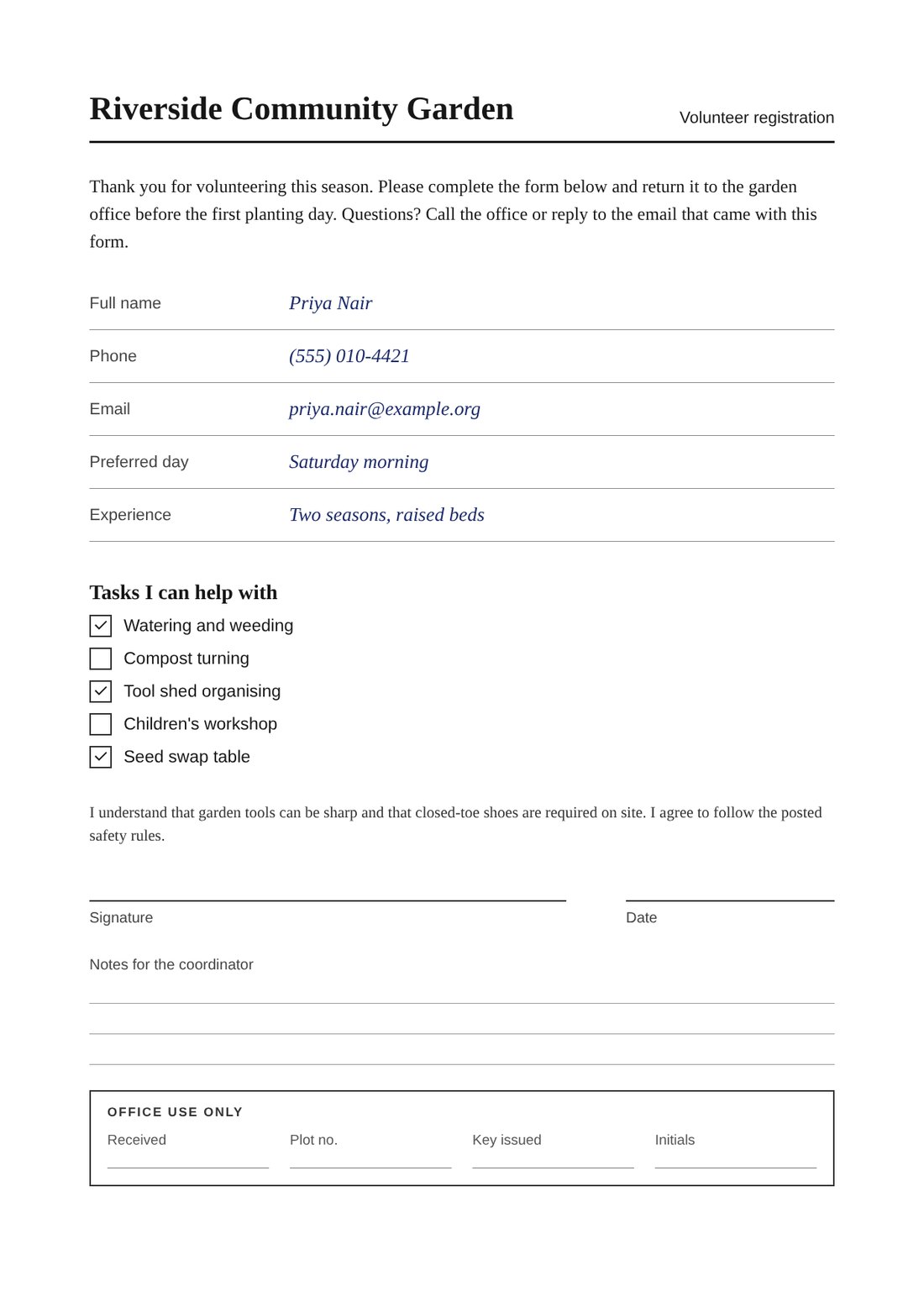 Scanned vs digital PDFWhat separates an image-based PDF from a text-based one, and when each is right.
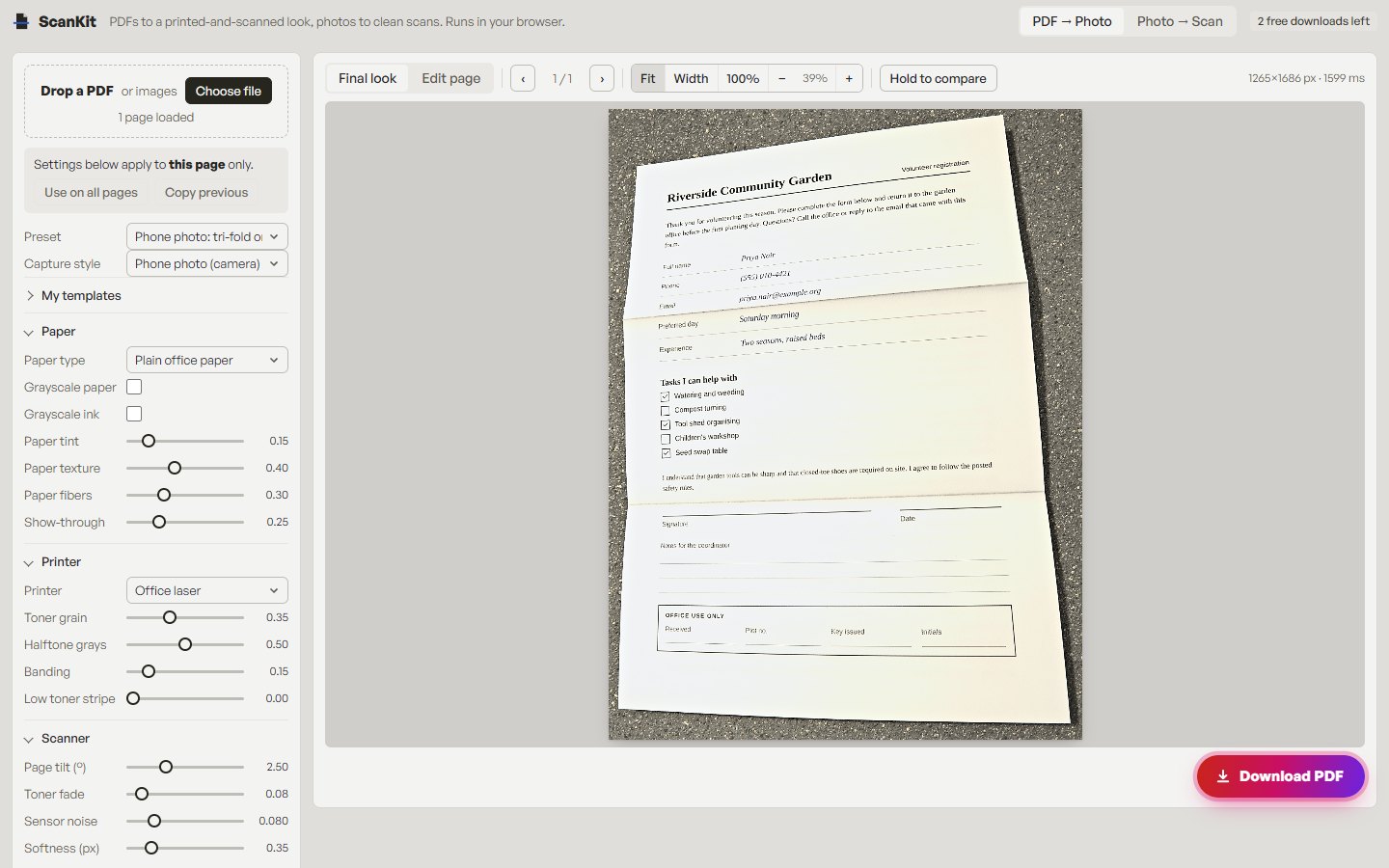 How to reduce a scanned PDF's sizeGet an image-based PDF under an upload limit without making it unreadable.
- Sign a PDF and return it as a scanAdd your own signature to a form and send it back in a scanned style.
A note on use These guides are for your own documents and for requests that accept a scanned-style copy. Use only your own signature or one you are authorised to apply, and never misrepresent a document’s origin or contents. See the acceptable use policy.