How to Make a PDF Look Scanned
To make a PDF look scanned, add the small flaws of a real scan: off-white paper grain, soft toner, a slight tilt, and uneven lighting. In ScanKit you load the PDF, pick a preset such as Subtle, adjust the Paper, Printer and Scanner groups, then download. It runs in your browser, so the file is not uploaded.
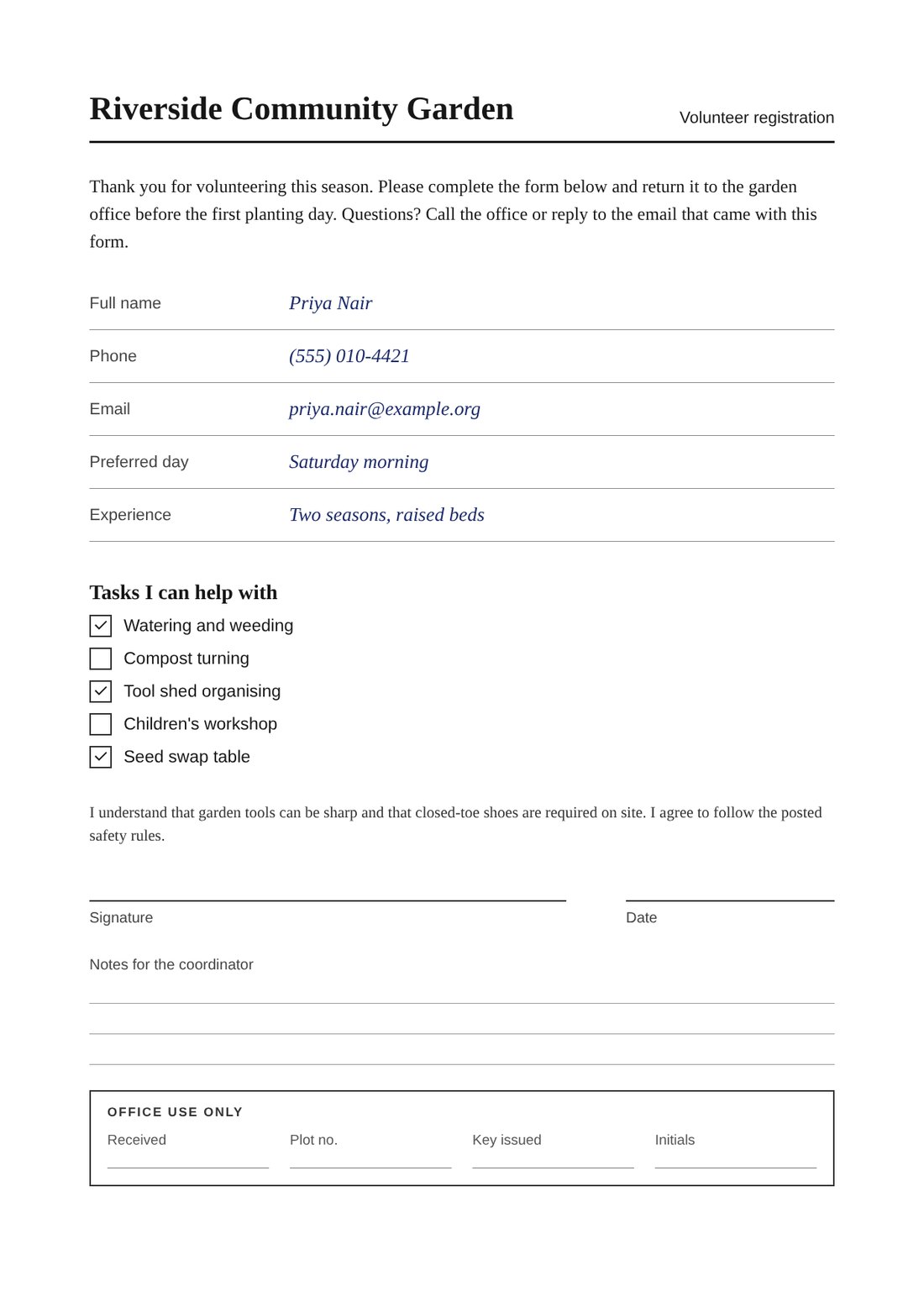
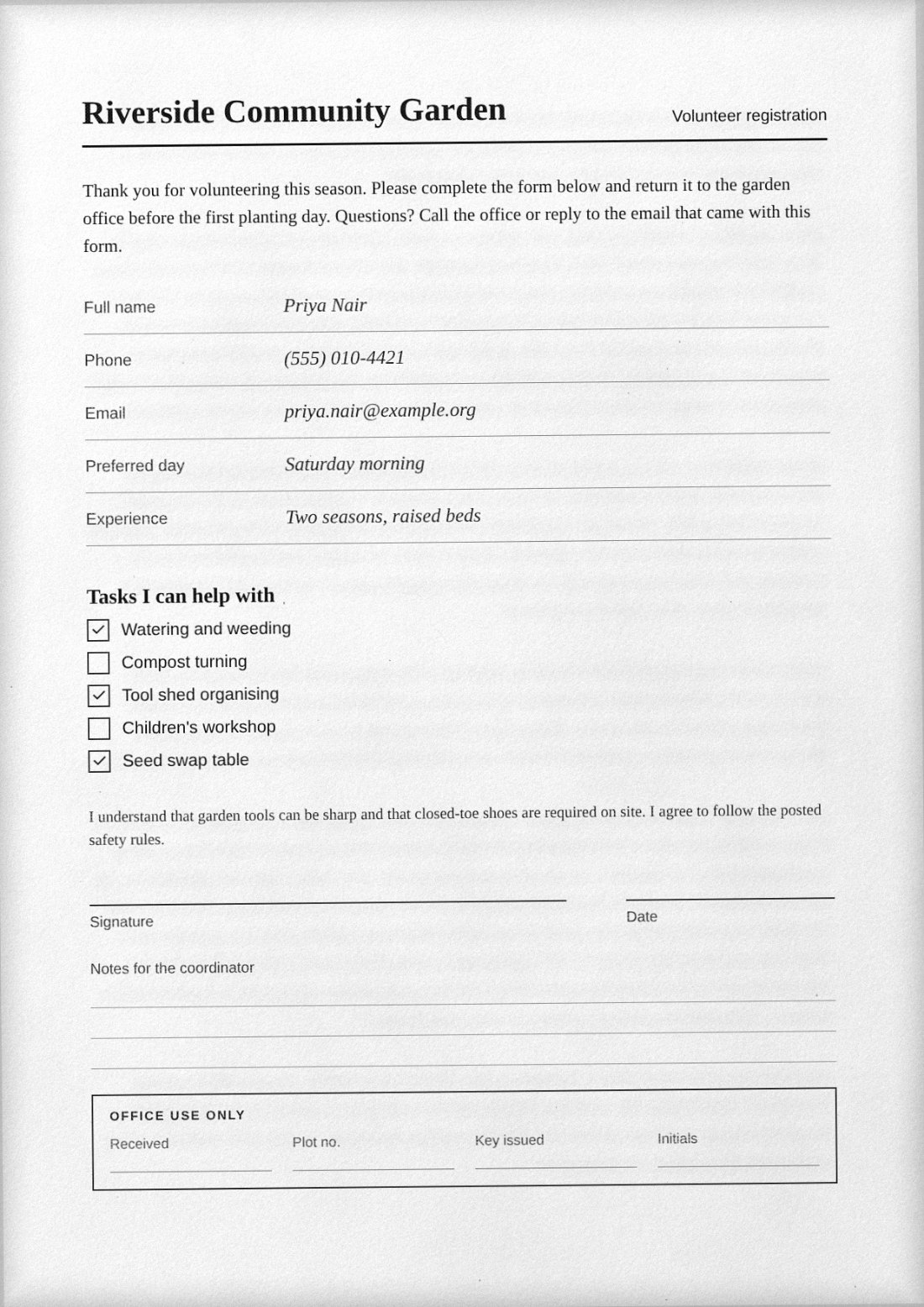
What makes a page look scanned
A real scan is the sum of several small imperfections, and a flat export from Word or a PDF editor has none of them. The paper is slightly off-white and has a faint grain. Text is a touch softer than on screen, and toner is not perfectly black. The page sits a fraction of a degree off square, and the lighting is a little uneven toward the edges. A few specks of dust show up. Add these in moderation and a clean file reads as a page that went through a scanner. Add them all at maximum and it reads as a filter.
ScanKit builds the effect in four layers, which map to the groups in the sidebar: Paper, Printer, Scanner and Folds. Working through them in that order keeps the result believable, because that is the order in which a real page picks up its flaws.
Step by step in ScanKit
- Open the app and load your file. Go to the app and stay on the PDF → Photo tab. Drop a PDF (or images) on the drop area, or press Choose file. Nothing is uploaded; the page is rendered in your browser.
- Start from a preset. Open the Preset menu. Subtle is a light touch, Photocopy is grayer and grainier, and B&W office scan (1-bit) mimics a black-and-white document scanner. You can fine-tune any of them afterwards.
- Choose the capture style. Flatbed scan gives a straight page with scanner edge shadow and sensor noise. Phone photo (camera) adds perspective, lens distortion, glare and a surface behind the page.
- Tune Paper, Printer and Scanner. Pick a Paper type (plain office, recycled, laid or cotton), choose Office laser, Inkjet or None (perfect print) under Printer, then adjust sliders such as Page tilt, Paper tint, Softness, Uneven lighting and Dust specks. Double-click a slider to reset it.
- Compare with the original. Press and hold Hold to compare to flash the untouched page, and use the zoom buttons (Fit, Width) to inspect small text. If the original text is hard to read when zoomed in, you have gone too far.
- Apply to every page. Use Use on all pages to copy the settings across a multi-page file. Each page keeps its own random variation, so no two pages are pixel-identical copies of the same flaw.
- Export. Press Download PDF. Every page is rendered with its own settings into one PDF.
Which look for which job
| You want | Start with | Then adjust |
|---|---|---|
| A clean office scan for a form or application | Subtle, Flatbed scan | Keep tilt under about 1 degree; leave dust low |
| A black-and-white document scan | B&W office scan (1-bit) | Raise Scanner sharpening a little if text looks thin |
| A photocopy of a photocopy | Photocopy | Pull Toner fade back if small print is lost |
| A page photographed on a desk | Phone photo: top-down tidy | Lower Glare and Desk shadow for readable text |
| A page that was folded in an envelope | Folded & scanned | Choose a Fold type, then trim Severity |
Settings that matter most
- Resolution. The Resolution (DPI) slider is in the Output & variation group and runs from 72 to 300, defaulting to 150. For text people will actually read, 200 to 300 is safer; 150 is fine for short, large-print pages.
- File size. Each page is saved as one JPEG image, so DPI and JPEG quality drive the size. Higher values give a bigger file. Turning on Grayscale paper usually helps, since gray JPEGs compress better than colour. If the file ends up too large, see how to reduce a scanned PDF’s size.
- Tilt. Real flatbed scans are rarely off by more than a degree or two. The slider goes up to 8, but anything past 2 looks like a crooked photo, not a scan.
- Paper tint and texture. Subtle wins. A heavy tint turns white paper beige and lowers text contrast.
- Random seed. The shuffle button next to Random seed gives a fresh variation if one result has an odd speck in a bad place.
Honest limits
The output is a PDF made of page images. There is no selectable or searchable text layer, so if you need to copy text out of the result, keep your original file alongside it. The effect is a simulation: someone who inspects the file closely, or software that looks at how a PDF was produced, can tell it did not come off a physical scanner. Do not treat it as a way to hide how a file was made.
Next steps
If you only need the shortest route from a digital file to a scan-style PDF, read converting a PDF to a scanned PDF online. If you have a paper original and a phone, turning a photo of a document into a scan is the better starting point.
You get two free PDF downloads a day (up to three a week from one internet connection). For unlimited downloads, $4.99 / month through PayPal, renewing monthly until you cancel in PayPal.
Open ScanKit and try it on your PDF
Frequently asked questions
Can I make a PDF look scanned for free?
ScanKit gives you two free PDF downloads a day (up to three a week from one internet connection). Unlimited downloads are $4.99 / month through PayPal, renewing monthly until you cancel in PayPal. The editing and preview happen in your browser either way.
Does the file get uploaded anywhere?
No. ScanKit renders the page in your browser, so your PDF stays on your device while you work.
What DPI should a scanned-looking PDF have?
150 DPI is the default and works for short or large-print pages. For ordinary text that someone has to read comfortably, 200 to 300 DPI is safer, at the cost of a larger file.
Will the text still be selectable?
No. Each page is exported as an image, so the result has no text layer. Keep your original PDF if you need to copy or search the text.
How much tilt is realistic?
A flatbed scanner usually leaves a page within a degree or two of straight. The default of 0.6 degrees is a sensible starting point; large angles look like a photo taken carelessly.